

In short
Cisco Meraki SD-WAN is the set of features on Meraki MX appliances that builds encrypted Auto VPN tunnels between sites over ordinary internet links and steers traffic across them automatically. It uses dual active uplinks, policy-based routing and dynamic path selection based on loss, latency and jitter. It is configured in the Meraki dashboard, mostly by choosing whether each MX is a hub or a spoke, and its core features are included in every MX licence edition.
Shop Cisco Meraki
Add products and licences to your basket, then check out when you are ready.
What Meraki SD-WAN is
Meraki defines software-defined WAN (SD-WAN) as a suite of features that lets the network adjust to changing WAN conditions without an administrator stepping in. Instead of relying on one private circuit per site, each site uses one or more internet connections, and the network decides, flow by flow, which connection each application should use.
In Meraki's implementation:
- Every MX can do it. Meraki says all of its WAN appliances have SD-WAN capabilities, and the same applies to the Cisco 8000 Series Secure Routers running MX software, the virtual Meraki MX (vMX) and, for home workers, the Meraki teleworker gateway.
- It is built on Auto VPN, Meraki's own way of creating site-to-site VPN tunnels from the cloud.
- It is managed in the dashboard. Uplinks, VPN roles, traffic rules and monitoring all live on the Security & SD-WAN pages of the Meraki dashboard.
Meraki SD-WAN is the networking engine behind a multi-site network: if your question is how to connect and run many branches, start there. This page explains the technology itself and how it is configured.
Shop security appliances
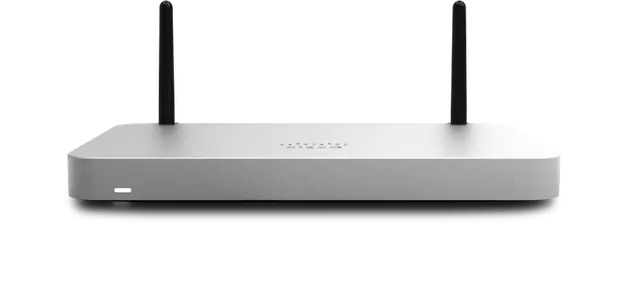
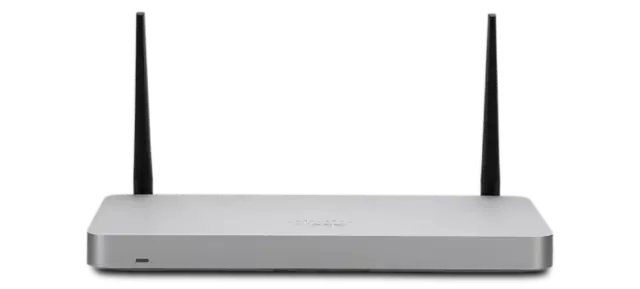
See all 25 products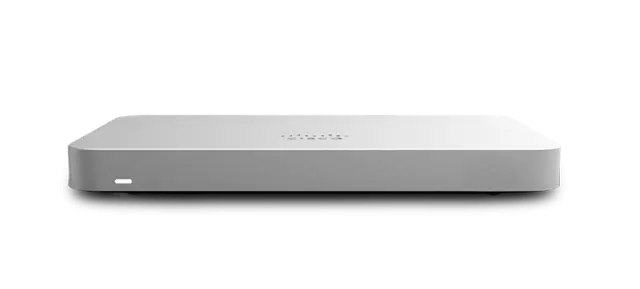
Auto VPN: site-to-site without manual tunnels
With traditional site-to-site VPN, an engineer configures both ends of every tunnel by hand: addresses, keys, encryption settings and the subnets on each side. Auto VPN replaces that with a cloud service:
- Each MX in the organisation registers with Meraki's VPN registry, sharing the public address and port it can be reached on.
- The dashboard already knows each site's subnets, so it tells every MX which peers it should connect to and which routes sit behind them.
- The cloud pushes the keys, and the appliances build AES-encrypted tunnels directly to each other. Your traffic flows between sites, not through the Meraki cloud.
Turning it on is a choice per appliance: on the Site-to-site VPN page you set each MX as a hub or a spoke, choose which local subnets join the VPN, and save. Auto VPN uses automatic NAT traversal, so in most networks tunnels form without separate inbound firewall rules; where an upstream NAT device changes ports or public addresses, Meraki documents a manual NAT traversal (port forwarding) option. The appliance needs outbound access to the VPN registry on UDP ports 9350 to 9381.
Two limits to plan around, both from Meraki's documentation:
- Auto VPN works within one dashboard organisation. Tunnels to non-Meraki devices, or to an MX in another organisation, use standard IPsec VPN instead.
- SD-WAN needs Meraki at both ends. Meraki says the path selection features require Meraki appliances at the hub and the spoke. A non-Meraki device can still join over IPsec, without the SD-WAN steering.
The VPN status page shows every peer, its exported subnets, latency and the routing decisions being made, in near real time.
Uplink selection and traffic steering
Once tunnels are up, the MX decides which uplink each flow should use. The tools, from Meraki's SD-WAN and traffic shaping documentation:
| Tool | What it does |
|---|---|
| Primary uplink | The default internet link for internet traffic, VPN traffic and dashboard management traffic |
| Load balancing | Spreads internet traffic across both uplinks in proportion to the bandwidth you set for each |
| Multi-Uplink Auto VPN (dual active) | Builds Auto VPN tunnels over every active uplink at once, not just the primary |
| Flow preferences | Sends traffic matching a layer 3 rule (for example a VLAN or a destination port) out of a chosen uplink |
| Policy-based routing | Sets a preferred VPN path for traffic by source, destination and port |
| Dynamic path selection | Moves each flow to a tunnel that meets the loss, latency and jitter limits you set for that kind of traffic |
| Traffic shaping | Limits or prioritises applications identified by layer 7 inspection |
Dynamic path selection is the heart of it. Each spoke sends a small UDP performance probe of about 100 bytes over every Auto VPN tunnel every second, and the MX works out loss, latency and jitter on each path from the replies. A built-in Best for VoIP rule keeps voice on the path with the best conditions for calls, and you can add rules for video, a business application or anything identified by Cisco's NBAR application recognition. Quality of service markings are copied into the encrypted tunnel header, so prioritisation survives the VPN.
Meraki's sizing guide lists Auto VPN tunnel failover and dynamic path selection as sub-second, and WAN failover as under five seconds, in its lab testing. With a second internet circuit, that helps keep calls and card payments running when one line has a bad day.
Compare, then add to your basket
Every product in our shop lists its order codes and licences, ready to add.
Hubs, spokes and data centres
Meraki recommends a hub-and-spoke topology for most SD-WAN deployments:
- Spokes (branches) build tunnels only to the hubs you choose. Branch-to-branch traffic goes through a hub.
- Hubs (head office, data centres or a vMX in the cloud) build tunnels to every other hub and to every spoke that uses them.
- A full mesh, where every appliance is a hub, is possible but multiplies the tunnel count, so it suits a small number of sites.
Design points for the hub end:
- One-armed concentrator. Meraki's recommended set-up for a data-centre hub is an MX in VPN concentrator mode with a single connection to the upstream network. An MX in normal NAT mode can also act as a hub.
- Hub priorities and data-centre failover. A spoke can have several hubs in priority order. Where the same subnets are advertised from two data centres, branches send traffic to the highest-priority hub they can reach, so a second data centre (or a vMX) takes over if the first is lost.
- Warm spare. Two concentrators of the same model can run as a high-availability pair using VRRP, and Meraki needs only one licence for the pair.
- Split or full tunnel. By default only traffic for other sites' subnets uses the VPN and internet traffic breaks out locally (split tunnel). To send all traffic through a central site, set a default route on a hub, or an exit hub in a mesh.
- Size the hub by tunnels. Every spoke uplink is a tunnel, so a hub's recommended tunnel count often decides its model. Our Meraki MX guide lists Cisco's figures for each model.
Meraki SD-WAN configuration, step by step
This is the outline of a typical Meraki SD-WAN configuration for a hub-and-spoke network, using the dashboard's Security & SD-WAN pages:
- Plan the addressing. Give every site unique subnets; Auto VPN routes by subnet, so overlaps cause problems later. Decide which subnets join the VPN.
- Build the hub. Set up the head-office or data-centre MX (in concentrator mode if it sits behind an existing firewall), and add a warm spare if it needs one.
- Set the hub's VPN role. On Security & SD-WAN > Configure > Site-to-site VPN, choose Hub and set the local networks to be exported over the VPN.
- Build the spokes. Use a configuration template for branches that share a design, then on each spoke choose Spoke, select its hubs in priority order and choose split or full tunnel.
- Set the uplinks. On the SD-WAN & traffic shaping page, enter the real upload and download bandwidth of each circuit, pick the primary uplink, and turn on load balancing and Multi-Uplink Auto VPN if both links should carry VPN traffic.
- Add performance rules. Apply Best for VoIP to voice traffic, and create rules with loss, latency and jitter limits for other critical applications.
- Add policy rules and shaping. Use flow preferences or policy-based routing where specific traffic should prefer a path, and shape bulky traffic such as updates and streaming.
- Test failover. Unplug each circuit in turn during a maintenance window and watch the VPN status and uplink pages to confirm traffic moves as designed.
- Set alerts. Send uplink and VPN connectivity alerts to a shared mailbox or another system, so failovers are noticed and the failed circuit is chased.
Templates do most of the work at scale: a change to the branch template reaches every bound site. Our Meraki setup guide covers the surrounding project, from survey to cutover.
Not sure what you need?
Tell us about your sites and we will recommend the right kit and licences.
Cellular and backup links
A second wired circuit is the usual backup, and cellular is the common third link or the backup where a second line is not practical. The options, from Meraki's documentation:
- An MG cellular gateway. The Meraki MG hands a 4G or 5G connection to the MX as an ordinary Ethernet uplink, so it can be mounted where the signal is best. Meraki's sizing guide says models without built-in cellular use an MG for cellular failover, and the MX85, MX95 and MX105 can power one over a WAN port. Current models include the MG41 (4G) and MG52 (5G).
- Built-in cellular. The MX67C and MX68CW have a cellular modem inside, and with MX 16.2 or later the cellular link can be used as an active SD-WAN uplink (it takes the place of the second wired WAN). Both reach end of sale on 27 November 2026, and Cisco's end-of-sale notice names the C8111-C-G2-MX and C8121-CW-G2-MX as replacements.
- USB modems. Meraki's MX67 and MX68 datasheet says support for third-party USB cellular modems ended on 30 June 2026, so new designs use an MG or a model with built-in cellular.
Cellular data costs depend on how much traffic uses the link, so many designs keep only critical traffic on cellular using SD-WAN policies. We can plan SIMs and data with the gateway.
SD-WAN licensing: Enterprise, Advanced Security and Secure SD-WAN Plus
Meraki's co-term licensing table puts the core SD-WAN features in every MX edition, Enterprise included: Auto VPN and third-party IPsec peering, sub-second dynamic path selection, policy-based routing, SD-WAN steering and policies, SD-WAN over cellular, MPLS to VPN failover, multi-WAN (two active uplinks plus one backup) and high availability. The higher editions add:
| Edition | Adds for SD-WAN sites |
|---|---|
| Enterprise | Core SD-WAN, Auto VPN, firewall and traffic shaping |
| Advanced Security | IDS/IPS, Talos content filtering, malware protection and geography-based rules, for sites that break out to the internet locally |
| Secure SD-WAN Plus | SD-Internet steering and policies, smart breakout, WAN, VoIP and Web App Health and Internet Outages from Meraki Insight |
The edition is uniform across a co-term organisation. An organisation on Advanced Security can add Per Device SD-WAN+ licences to upgrade individual networks (1, 3 or 5-year terms, not for template-bound networks). The vMX is licensed in Enterprise and Advanced Security only. On subscription licensing the same features fall into Essentials and Advantage tiers.
Compare the editions in Meraki Enterprise vs Advanced Security. For cloud-delivered security alongside SD-WAN, Meraki also integrates with Cisco Secure Access over IPsec, with tunnel monitoring included in every edition; see Cisco SASE on our Cisco security site.
How Forever Systems helps
Forever Systems is a Cisco Partner. For Meraki SD-WAN we can design the hub-and-spoke topology, size the hubs and branch appliances, choose the licence edition, plan primary, secondary and cellular links, and build the templates and performance rules so new sites come online ready to go.
Shop the Meraki firewall range and the cellular gateways, add appliances and licences to your basket and request a quote. Pricing depends on the models, the edition and the term, so ask us for a quote, or contact us to talk through your sites.
Working with us on Cisco Meraki
Forever Systems helps organisations plan, buy and run cloud-managed networks built on Cisco Meraki wireless, switching, security and SD-WAN.
- Plan the network: we look at your sites, users and existing kit, and can arrange a wireless site survey before anything is ordered
- Choose the right products: access points, switches, security appliances, cellular gateways, sensors and cameras sized to what each site needs, rather than a one-size bundle
- Licensing made clear: we explain co-termination, per-device and subscription licensing, check renewal dates and quote the licences you need
- Deployment help: we can set up the Meraki dashboard, organisations, networks, templates and policies, and help move you from older or on-premise kit
- Ongoing help: changes, licence renewals and reviews as your sites grow, with the scope agreed at quote
Ask us for a quote and we will confirm what is included for your organisation.
Frequently asked questions
Is SD-WAN included with the Meraki MX?
Yes. Meraki's licensing table includes the core SD-WAN features, including Auto VPN, sub-second dynamic path selection, policy-based routing and SD-WAN over cellular, in every MX edition from Enterprise up. Secure SD-WAN Plus adds SD-Internet steering, smart breakout and Meraki Insight health views.
How do I configure Meraki SD-WAN?
Give each site unique subnets, set the head-office or data-centre MX as a hub and the branches as spokes on the Site-to-site VPN page, choose the subnets that join the VPN, enter each uplink's bandwidth on the SD-WAN & traffic shaping page, enable Multi-Uplink Auto VPN and add performance rules such as Best for VoIP. Configuration templates apply the same settings to many branches.
What is Meraki Auto VPN?
Auto VPN is Meraki's cloud-brokered site-to-site VPN. Each MX registers with Meraki's VPN registry, the dashboard tells it which peers and subnets to connect to and pushes the keys, and the appliances build AES-encrypted tunnels directly to each other. It works between Meraki appliances in the same dashboard organisation.
Can Meraki SD-WAN use 4G or 5G as a backup link?
Yes. An MG cellular gateway gives the MX a 4G or 5G Ethernet uplink, and models with a built-in modem can use cellular as failover or, with MX 16.2 or later, as an active SD-WAN uplink. Support for third-party USB modems ended on 30 June 2026.
Which licence do I need for Meraki SD-WAN?
Enterprise covers core SD-WAN and Auto VPN. Choose Advanced Security if branches break out to the internet locally and need intrusion prevention and content filtering, and Secure SD-WAN Plus for SD-Internet steering, smart breakout and application health monitoring. Ask us for a quote for your sites.
Ready to order?
Build your basket in our Meraki shop and send it to us for a quote.